Dockerizing a Multi-Container Application with Docker Compose
Full-stack developer | React, Django, Python | Passionate about building ML-powered web apps | Final year CS student
What is a Multi-Container Application?
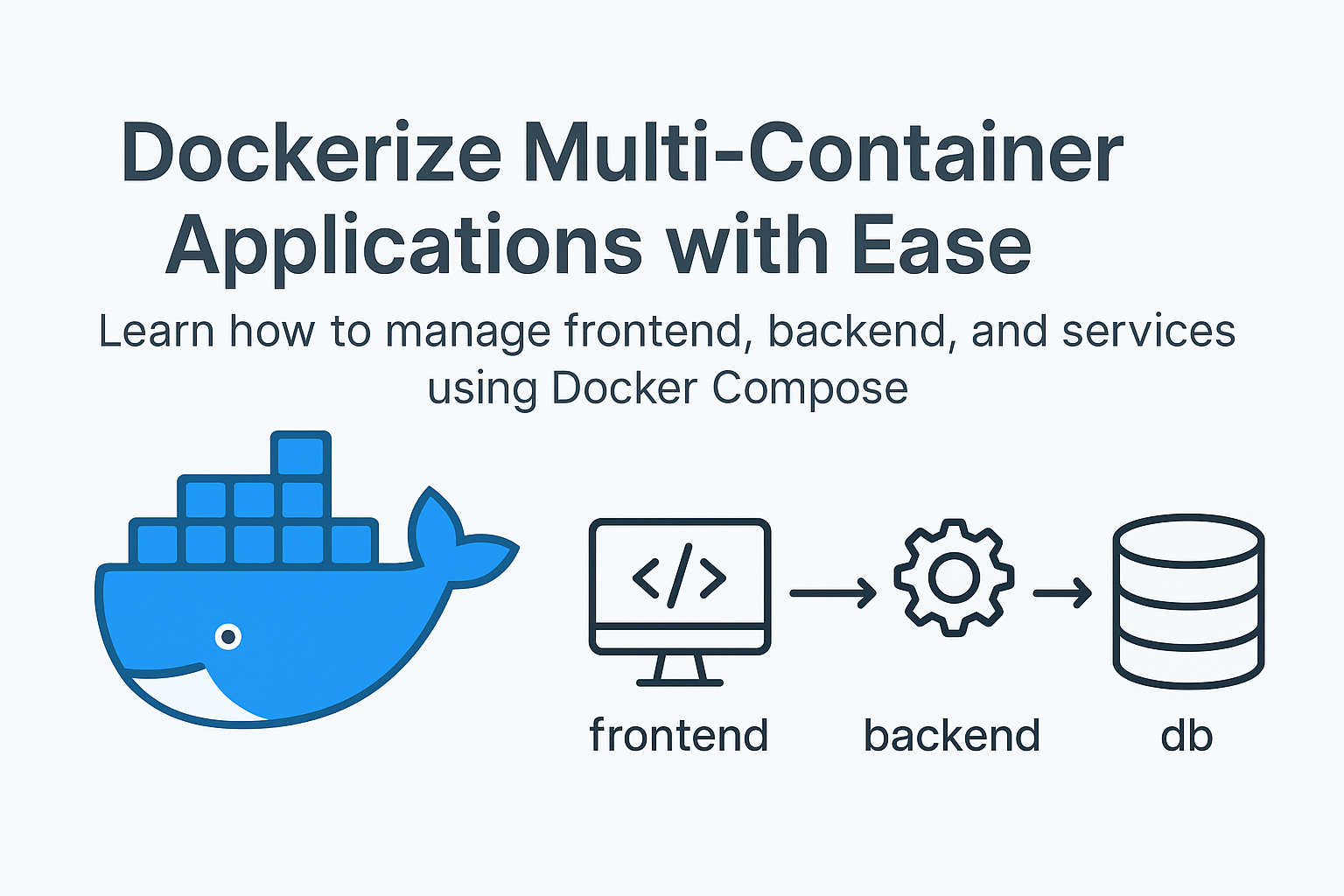
A multi-container application is an app made of multiple services (or parts), where each service runs in its own container. For example, a web app may have a frontend container (React, Angular) and a backend container (Node.js, Python), each doing different jobs but working together.
What is Docker Compose?
Docker Compose is a tool that helps you define and run multi-container Docker applications. Instead of running each container manually, you describe everything in one file (docker-compose.yml) and run all the services with a single command.
What is a .yaml file?
A .yaml (YAML Ain’t Markup Language) file is a human-readable file format used for configuration. In Docker Compose, the docker-compose.yaml file is used to describe services, volumes, ports, and networks in a structured way.
docker-compose.yaml File Structure Explained (Based on Example)
services:

  frontend:
    build: ./frontend
    volumes:
      - ./frontend:/usr/share/nginx/html
    ports:
      - "3001:80"
    networks:
      - app-network

  backend:
    build: ./backend
    volumes:
      - ./backend:/var/www/html
    ports:
      - "3002:80"
    networks:
      - app-network

networks:
  app-network:
Each Link in docker-compose.yaml
version: Defines the Docker Compose file format version.services: Lists all containers to be started.build: Tells Docker to build the image from the given folder.volumes: Mounts local folders into the container (for syncing code or assets).ports: Maps internal container ports to your host machine ports.networks: Connects services so they can talk to each other securely.app-network: A custom network for internal communication.
Docker Networking Explained
What is Docker Networking?
Docker networking lets containers talk to each other. When containers are on the same network, they can communicate using container names instead of IP addresses.
How Docker Creates Networks from YAML
When Docker Compose sees a networks: section, it automatically creates a virtual network (like app-network) and connects all services that declare it. This allows them to interact as if they are on the same local network.
Types of Docker Networks
1. Default Network (bridge)
Created automatically if you don’t specify any.
Useful for small projects or quick testing.
All containers are connected but use random names.
2. Custom Network
Created explicitly (like
app-networkin your file).Containers can talk to each other using service names.
Better control over communication and isolation.
Used when you want better structure and communication (like between
frontendandbackend).
Why Custom Network in This Case?
In your project, frontend and backend need to talk to each other. A custom network (app-network) ensures both containers are connected and can find each other by name. It’s cleaner and more reliable than using the default bridge network.
Steps to Dockerize a Multi-Container Application
Write the frontend microservice and Dockerfile
 # frontend/Dockerfile
 FROM nginx:alpine
 COPY . /usr/share/nginx/html
Write the backend microservice and Dockerfile
 # backend/Dockerfile
 FROM php:apache
 COPY . /var/www/html/
Create
docker-compose.yamlfileservices: frontend: build: ./frontend volumes: - ./frontend:/usr/share/nginx/html ports: - "3001:80" networks: - app-network backend: build: ./backend volumes: - ./backend:/var/www/html ports: - "3002:80" networks: - app-network networks: app-network:
Docker Commands for Running and Stopping Compose
Start all containers:
docker-compose up -d --buildStop all containers:
docker-compose downIf already build then Start all containers:
docker-compose up -d
Conclusion
In this guide, we explored how to run a multi-container application using Docker Compose. We broke down the core concepts — from understanding what a multi-container app is, to learning how Docker Compose and its YAML configuration work. We also saw how Docker networking enables services to communicate efficiently. By following a few simple steps — writing Dockerfiles for each microservice and defining services, volumes, ports, and networks in a docker-compose.yaml file — you can containerize and orchestrate your entire application with ease. This approach simplifies development, testing, and deployment, especially for modern microservices-based systems.


